Configuration & workflows
Options for all countries
This page contains the global options (available for every country) and the related workflows referenced in the DPD options screen: partial fulfillments, automatic filtering rules, Klaviyo, mobile delivery status, packing slips, Shopify Flow and more.
- Set global list columns, filters and batch behavior.
- Use barcode scanning to find orders faster.
- Print packing slips in bulk (and customize templates).
- Automate tracking creation with Shopify Flow (Premium+).
On this page
Jump to what you need:
Options for all countries
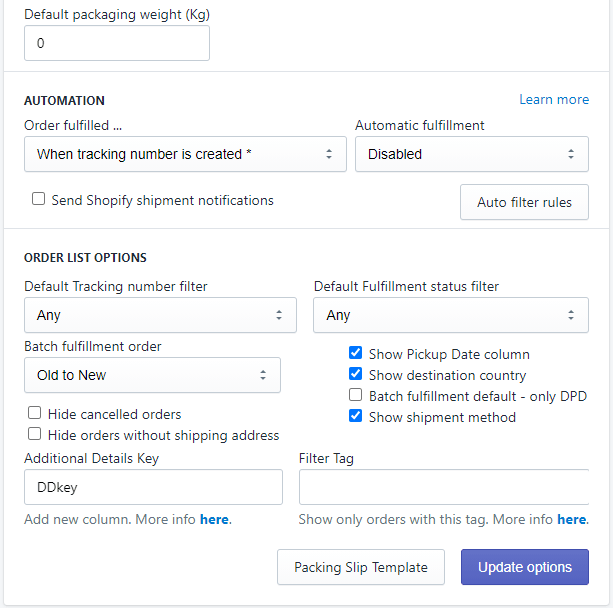
The last section in the integration options panel are the options which are available for all countries.
- Additional Details Key — you can use data created by other apps. (See Additional Details column.)
- Batch fulfillment order — the order in which orders are fulfilled influences the tracking numbers received from DPD.
- Filter Tag — you can use an order tag to filter the orders in the DPD Shipment list page.
- Show destination country — add a new column in the list with the code of the destination country.
- Show shipment method — add a new column in the list showing the shipment method selected for each order.
- Batch fulfillment default — only DPD — if checked, the default option for batch fulfillment is “Only items with DPD fulfillment service”. If unchecked, all items in order will be fulfilled.
- Packing Slip Template — select the packing slip template. (See Packing slips.)
- Scan order barcode using mobile camera or an external barcode scanner. (See Scan order barcodes.)
Partial fulfillments
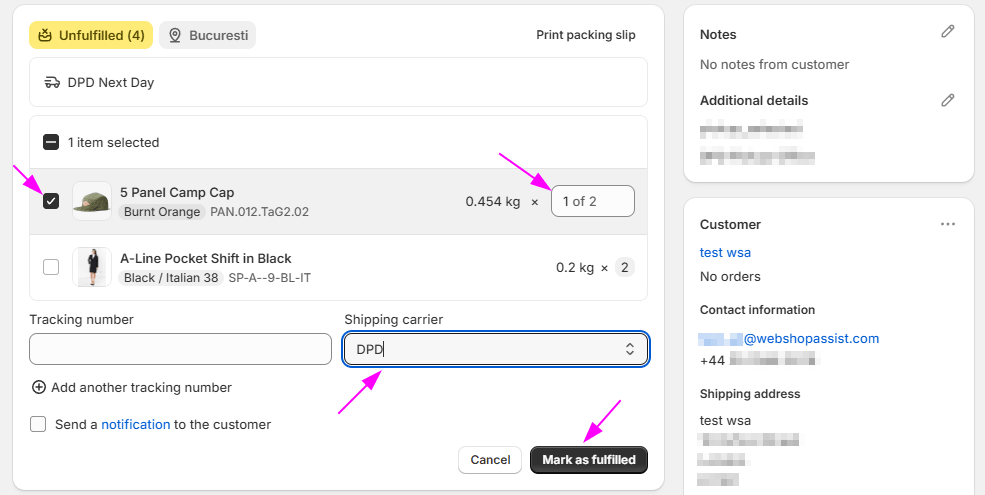
If you need to create a fulfillment only for some of the items in the order, you can still use the app to generate the DPD shipment.
Please follow these steps:
- Click the Request fulfillment button (or Mark as fulfilled button, if your products are using Shopify manual fulfillment).
- Reduce the quantity of at least one item in the order to make it a partial fulfillment.
- Set the Shipping carrier dropdown to DPD.
- Click Fulfill items button.
After you click Fulfill items button, the request for tracking number will be sent to the app and the tracking number will be created. The tracking number will be available in a few seconds. You might need to refresh the order page to see it.
Automatic filtering rules
This feature is only available to the Premium plan and above.
Automatic filtering rules will help you select which orders get fulfilled when you are using:
- Automatic fulfillment (immediately after the order is created), or
- Batch fulfillment (multiple orders fulfilled at the same time from the app's Shipment List page).
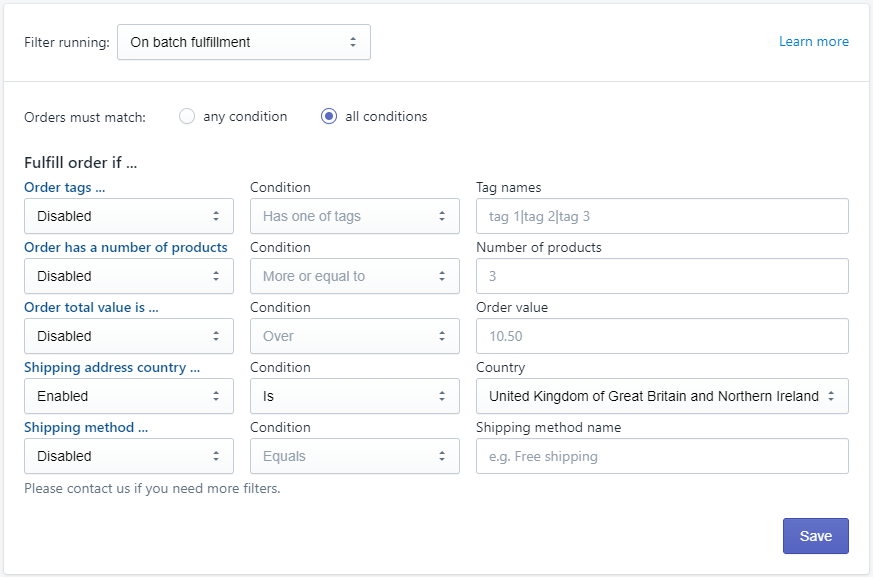
If this filtering is enabled, only orders that match the filter rules will be fulfilled. If Filter mode is different than “Disabled”, you must have at least one filter rule enabled, otherwise all orders are filtered-out and not processed.
You can filter orders by tag*, number of products, value, destination country or shipping method.
There are two modes to match the filtering rules:
- any condition — at least one of the enabled filters conditions must be matched
- all conditions — an order must match all enabled filters to pass
Note*: using filtering by Tags with Automatic fulfillment mode will not work if the tags are set on orders by another app, because we have no control over the order of notifications Shopify sends. Therefore the app setting the tag might get notified by the order creation after our app. Filtering by Tags works well in Batch fulfillment mode.
Watch the automation options video.

Klaviyo integration
The app can send “Order fulfilled” events to Klaviyo.
Event name
The name of the event sent to Klaviyo is “Fulfilled Order”.
When it triggers
If enabled, the event is sent each time the app marks an order as fulfilled. The event will not be sent if the order is marked as fulfilled from the Shopify admin.
Plan availability
This feature is available starting with the Premium plan.
For stores with Premium plan or higher, a link in the app's options page allows access to the page for entering the Klaviyo public API key, which is required for this integration.
Delivery status on mobiles
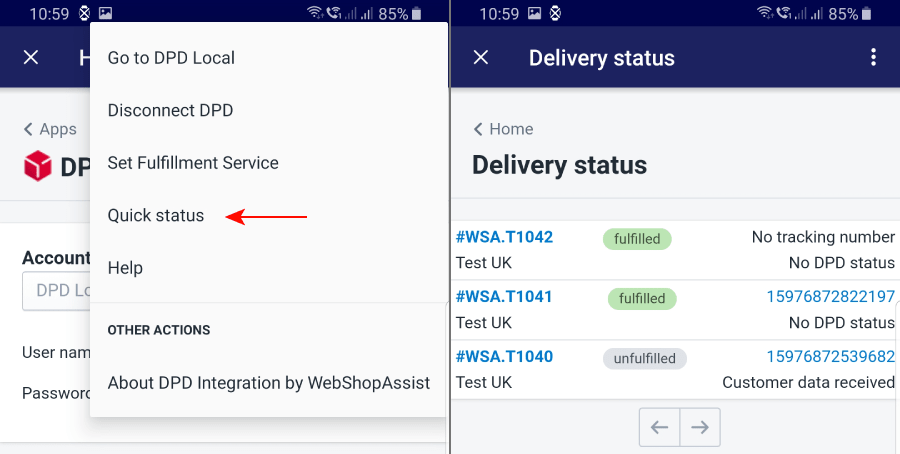
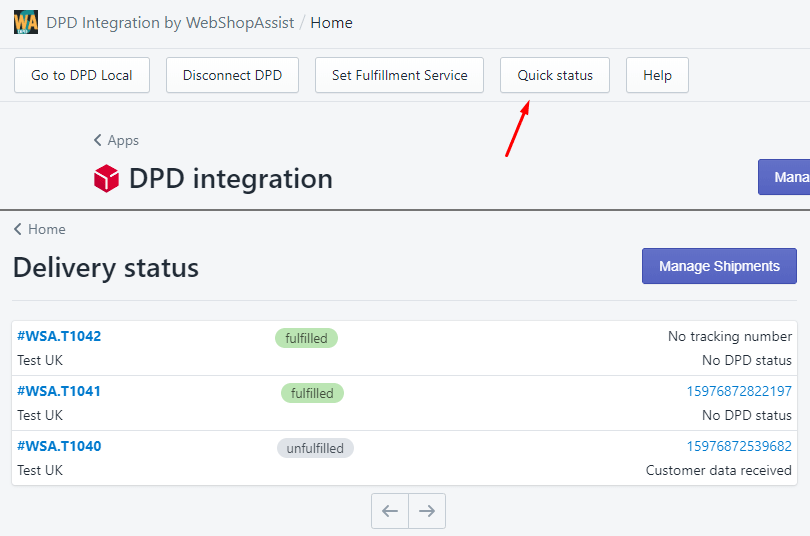
Click on the Quick status button to see the delivery status of your latest orders.
On mobile
On mobiles, it can be accessed through Shopify's mobile app: go to Store > Apps > open the DPD Integration app, then open the Quick status page from the menu.
On desktop
On desktop, the Quick status button is placed on the top button row, in the home page of the app, for easy access. The page shows the latest orders and their DPD status.
Additional Details Column
You can use data created by other apps and display it in the order list page, to help you with your delivery process.
1) Find the key name
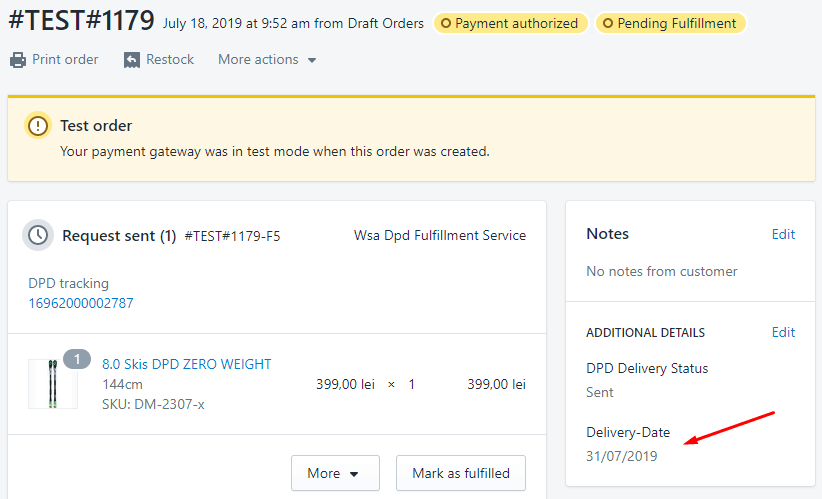
If the app saved its info in the order's additional details, as in the below image, you can display that info in the Manage shipments page as a new column.
Take the title of the additional details data — in the example below “Delivery-Date” — and add it in the Additional Details Key field in the app's options page. The Additional Details Key has to be exactly the same as it appears in the order's additional details (case sensitive).
2) See it as a new column
After you set the key, the app will show a new column with that info in the shipment list.

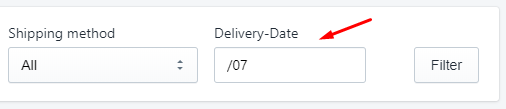
3) Filter by that value
At the same time, a new filter field will be displayed to allow you to narrow the results. The filter is text-type; it will match orders that include the text you enter in the additional details field.
Search with Shopify
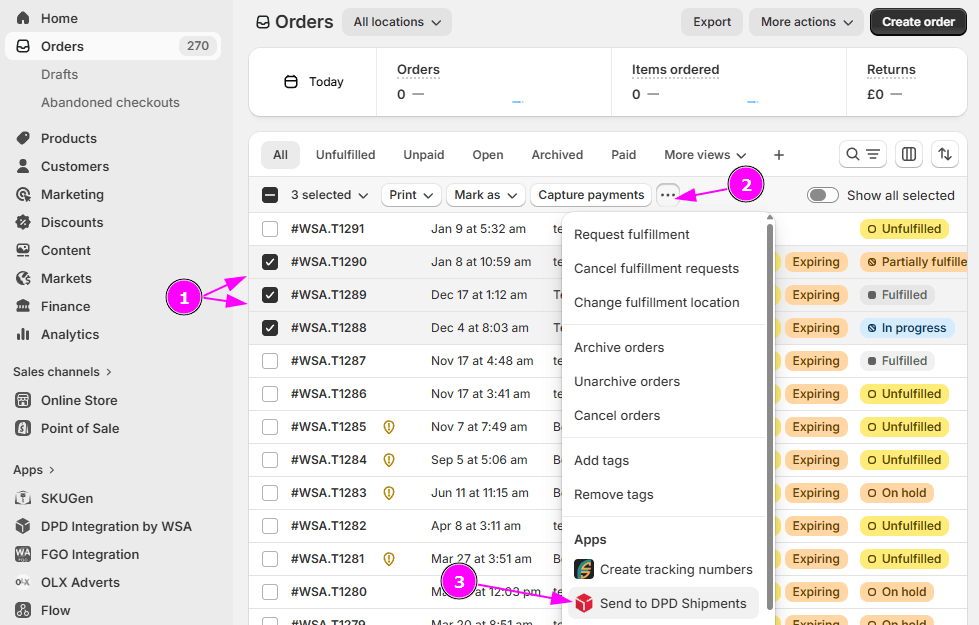
You can take advantage of the powerful Orders search in the Shopify admin to find orders you want to fulfill.
Go to the All orders page, search for the orders you need, select them, then from the Actions dropdown send them to our app.
The selected orders will be loaded in the Shipment list where you can start the fulfillment process or print their labels.
Packing Slips
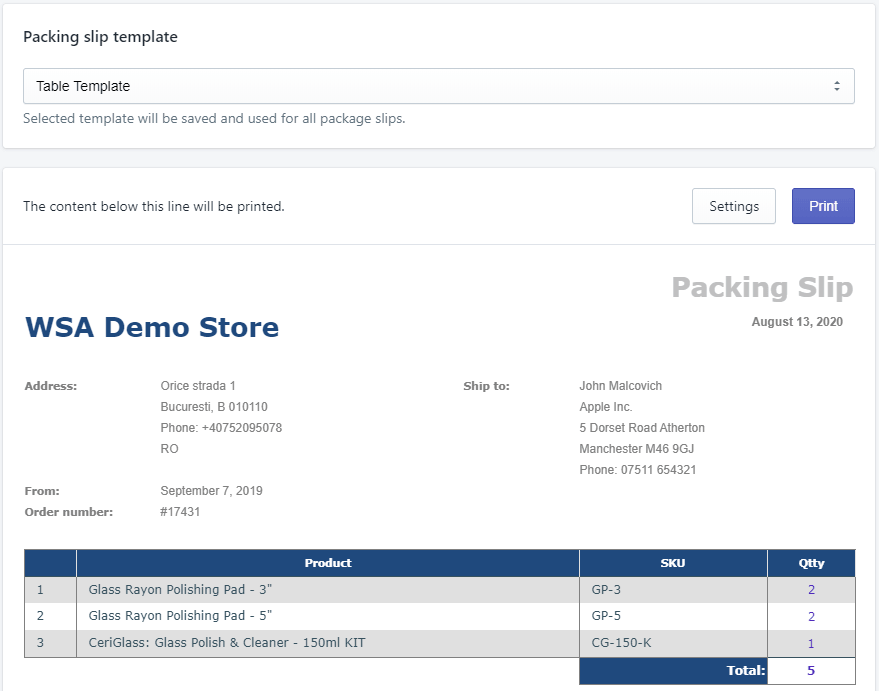
There are multiple packing slip templates available. You can also customize the template design using the liquid based template.
Choose a template
The packing slips can be configured to change or translate the static texts. You can also add a custom text at the end of the template, which can include a liquid-like variable to display the value of the Additional Details Key. If you include {{additional_details_key}} in the text, the app will replace this placeholder with the value of the additional details with the name configured in the “Additional Details Key” option.
Learn more about packing slips templates and customization on the dedicated page: DPD Packing slip templates.
Print in bulk
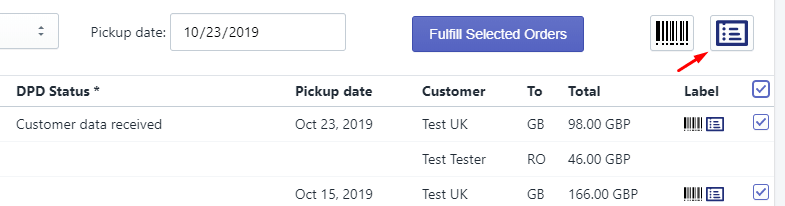
The app can print packing slips for your orders in bulk. Just go to the DPD Shipment List page, select the orders on the right side of the list, then click the Packing Slip button.
The packing slips can be viewed and printed individually too, by clicking on the small buttons from the Label column.
Shopify Flow
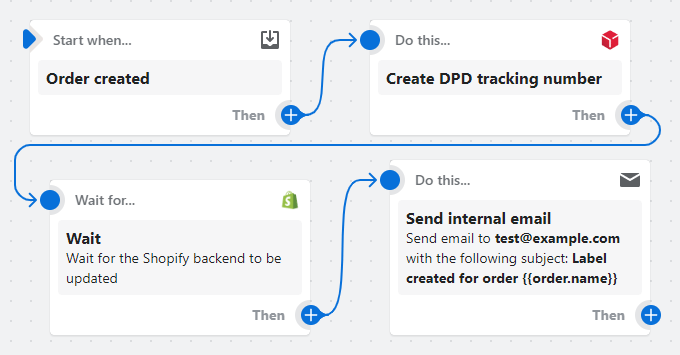
Automate the creation of DPD tracking numbers using the Shopify Flow automation platform.
You can create tracking numbers automatically using Shopify Flow and the Create DPD tracking number flow action. The action requires the order_id input and will create the shipment in the DPD system using the same rules as if the automatic fulfillment option would be used.
Using this flow action instead of the app's automatic fulfillment option allows you to implement complex workflows and decide which orders will get the tracking number created.
This feature is available starting with the Premium plan.
Please read the application's privacy policy and the terms and conditions for providing this service.
Packing Checklist
The Packing Checklist is a dedicated page for warehouse staff to verify each item in an order before generating a shipping label.
How it works
Open the Packing Checklist from the Shopify admin order details page by clicking More actions → Packing Checklist. The page displays all unfulfilled items with their product image, title, variant, SKU and quantity. Each item has a checkbox to tick as it is placed in the box.
When all items are checked, the Generate Label button becomes active, allowing the packer to proceed to shipment creation. The packing state is saved to the database — if the packer navigates away and returns later, all previously checked items remain checked.
For partially fulfilled orders, the page shows fulfilled items as read-only with a Fulfilled badge, and only unfulfilled items are available for packing.
Barcode scanning
A barcode scanner input is available at the top of the items list. It supports three scanning methods:
- USB / Bluetooth scanner — a hardware scanner types the barcode and sends Enter. The app matches it against the item's SKU or variant barcode and ticks the checkbox automatically.
- Shopify mobile app — tap the camera button to open the native barcode scanner. After a successful scan, the item is matched and ticked.
- Browser camera — on Chrome for Android, the camera button opens the device camera for barcode detection directly in the browser.
The scanner matches against both the variant SKU and the variant barcode (case-insensitive). You can also type or paste a value and press Enter.
Additional features
- Order notes & custom attributes — displayed in dismissable cards above the items list. Each card can be independently hidden or shown, and the preference is saved across sessions.
- Total weight — the sum of all item weights is shown in the left column, helping the packer select the correct box size.
- Audit log — each checked item shows who packed it and when (e.g. Packed by #12345 at 12/05 14:32), adjusted to the user's local timezone.
- Select all / Deselect all — quickly check or uncheck all items at once.
Speed up picking
Scan order barcodes using your phone camera or a barcode scanner.